Install Petal
Petal is a native desktop app. macOS users receive a signed and notarized
universal .dmg for macOS 13 or later. Windows users receive an x86-64 NSIS
setup executable.
Windows warning: the current Windows installer is intentionally not Authenticode-signed. Windows may show a Microsoft SmartScreen or unknown publisher warning. This is separate from the Tauri updater signature, which still verifies automatic update artifacts.
Download
Section titled “Download”- Download Petal for macOS
— the latest signed and notarized universal
.dmgfor Apple Silicon and Intel Macs. - Download Petal for Windows — the latest x86-64 NSIS installer. It is currently unsigned for Authenticode, so SmartScreen may warn.
The marketing homepage will expose the same two platform-specific links once its separate release-site repository adopts the Windows download.
Install on macOS
Section titled “Install on macOS”- Open the downloaded
.dmgfile. - Drag Petal into your Applications folder.
- Open Petal from Applications (or Spotlight/Launchpad) like any other app.
Petal is signed with a Developer ID certificate and notarized by Apple, so macOS Gatekeeper recognizes it as coming from an identified developer. A normal double-click launch is enough — macOS may show its standard one-time “downloaded from the internet” confirmation, but you don’t need to right-click and choose Open or work around any Gatekeeper warning.
Install on Windows
Section titled “Install on Windows”The published Windows build targets x86-64 Windows. WebView2 may be installed by the setup program and requires an internet connection when it is not already present.
- Download the Windows installer from the link above.
- Run the
Petal_<version>_x64-setup.exefile. - If SmartScreen says Windows protected your PC, use More info only after confirming that the installer came from the official Petal download, then choose Run anyway if you accept the current unsigned-build risk.
- Launch Petal from the Start menu.
Windows automatic updates use the signed NSIS updater artifact and Tauri’s embedded public key. An update can therefore be cryptographically verified, but the initial unsigned installer may still produce a SmartScreen warning.
First launch
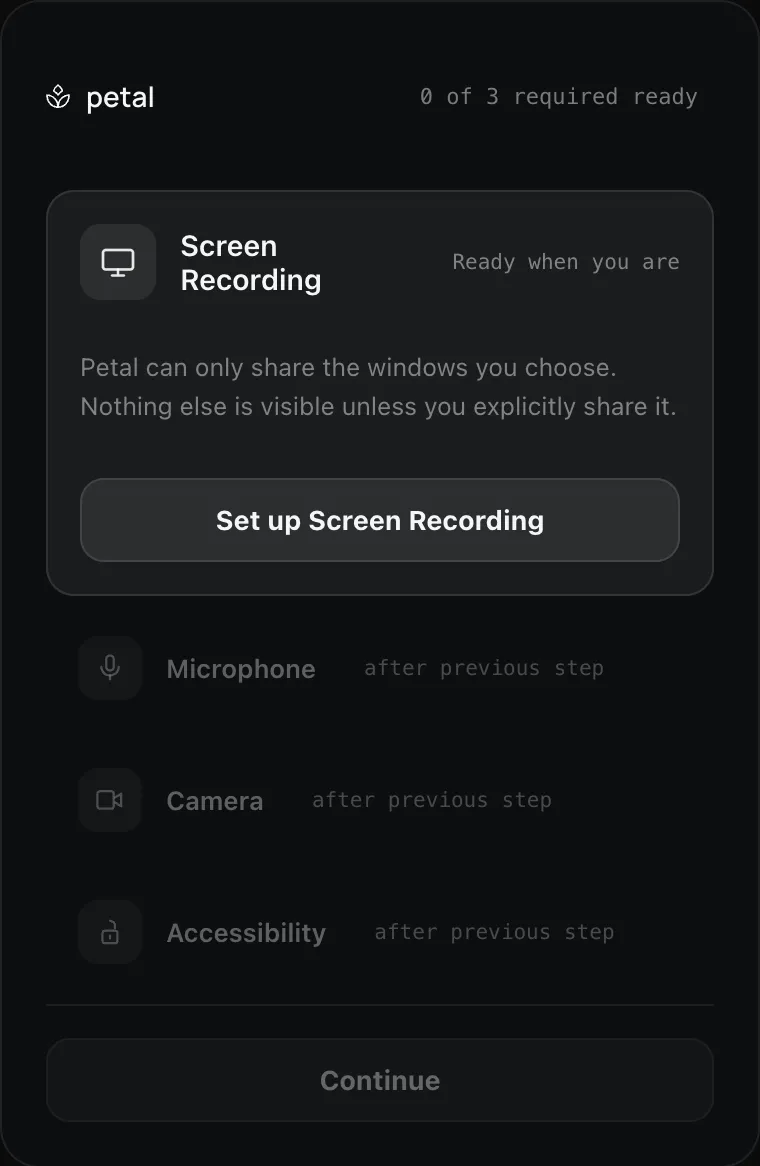
Section titled “First launch”On first launch, Petal walks you through granting the macOS permissions it needs — Screen Recording, Microphone, Camera, and Accessibility. See Permissions setup for what each one is for and how to grant it. Windows has no equivalent permission model, so the Windows build skips straight to picking your name and color.
Staying up to date
Section titled “Staying up to date”Petal checks for updates automatically when it launches, and again whenever you return to the main menu (at most once every 30 minutes). A check on its own never installs anything: when a new version is available, the app shows a notification with a Restart now action, and only clicking that downloads, installs, and relaunches with the update applied — you don’t need to re-download the app yourself. You can also trigger a check manually from Settings → About → Check for updates.