Sharing your windows
Petal shares individual windows, not your whole screen. You can share more than one window at a time (up to four), and each one is a separate share that your teammates can move and resize independently on their own desktops.
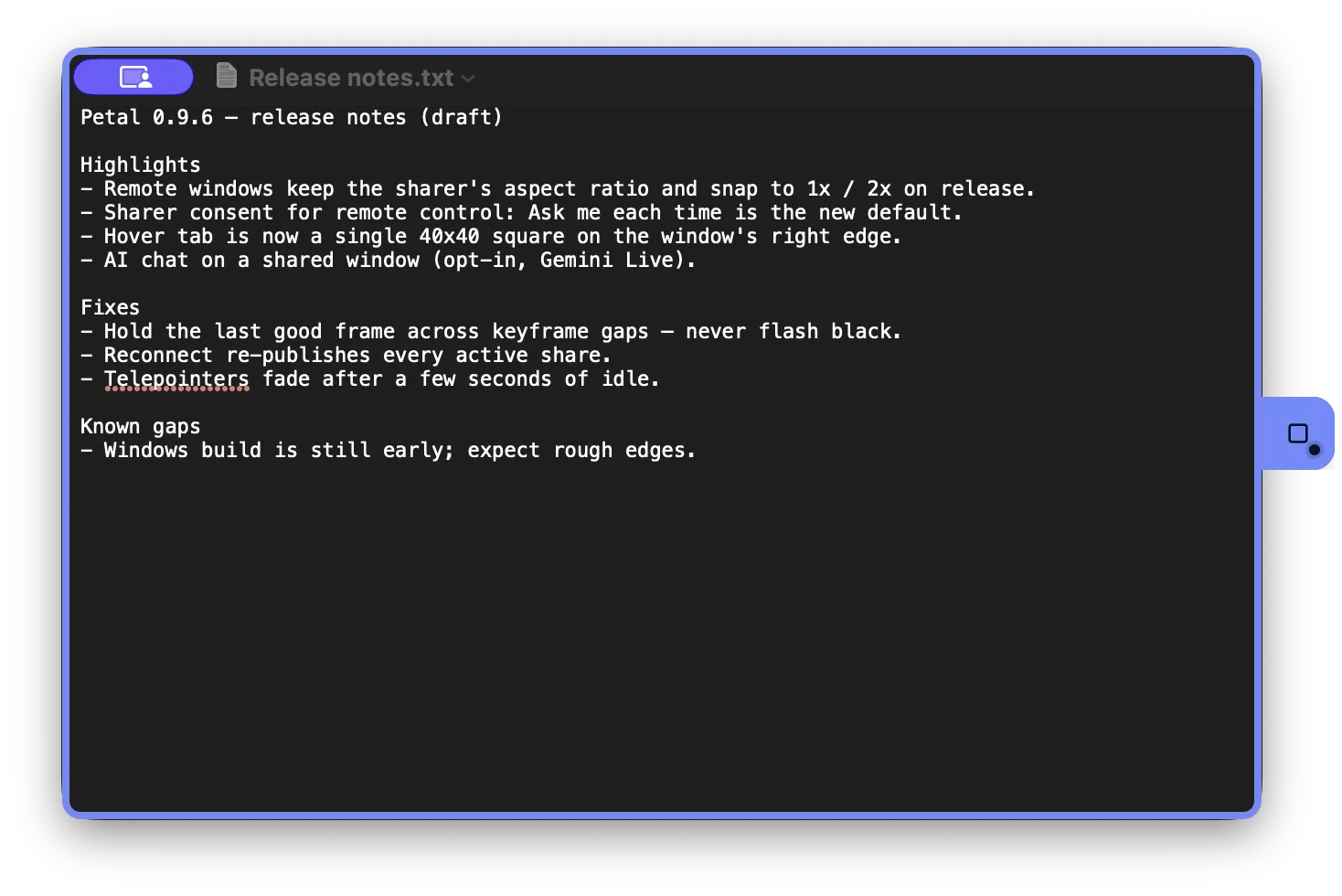
A window you are sharing, seen on your own Mac: the rounded border and the hover tab are both in your identity color.
Start sharing with the hover tab
Section titled “Start sharing with the hover tab”During a meeting, move the pointer over an eligible window to reveal Petal’s 40×40 hover tab. Drag the tab along the window’s top, right, bottom, or left edge. It stops just short of each corner; deliberately crossing an endpoint moves it to the adjacent edge. Click the tab (or press Enter or Space when it has focus) to perform the direct action: an unshared window starts sharing, and a shared window stops sharing. The button is disabled while the request is pending. Its tooltip and accessible name explain the action, dragging, and the right-click options menu.

Once a window is shared, Petal draws a rounded border around it on your screen in your identity color, so you can tell at a glance which of your windows are live. The tab turns the same color and shows a live marker. Teammates don’t see your local indicator — on their machines, the shared window itself appears as its own window, with your name and color on its header (see Viewing shared windows).
Windows keeps its native gold capture border for every active window capture, including elevated targets; Petal does not request administrator rights or replace that system indicator. If the custom indicator cannot be made safe, sharing still starts with the native system border.
Move the hover tab
Section titled “Move the hover tab”The tab is also a drag surface. Motion below 6px remains a normal Share/Stop click. Once movement reaches 6px, drag it along the current window edge; it follows in real time and the click is suppressed. The tab stops just short of each corner, and deliberately crossing an endpoint moves it to the adjacent edge. Petal stores one normalized perimeter position, so placement applies to later windows and survives a restart.
Press Escape, cancel the pointer gesture, or let pointer capture be lost to cancel instead of committing. A missing or malformed saved position safely returns to the default right-center position. The tab always stays exactly 40×40 and never becomes a free-floating control that covers content.
The options menu
Section titled “The options menu”Right-click the tab to open Petal’s system-native sharing-options menu. When the tab has focus, Shift+F10 or the keyboard Menu key opens the same menu beside it. Opening the menu never starts or stops sharing. It contains:
- Screen sharing priority — see below.
- Hover tab position — Top, Right, Bottom, and Left edge presets, alongside the draggable perimeter placement.
- Remote control (Windows only) — Cursor-preserving (default) or Full control, the per-share control mode described in Remote control.
- Allow remote control — a per-window lock, enabled only while the window is shared. Both the per-window and meeting-wide gates must allow control.
- Draw on this shared window / Stop drawing on this window — see Telepointers and drawing. Only enabled while the window is shared.
- Start AI chat on this window / Stop AI chat on this window — appears only when AI chat is turned on in Settings and the window is currently shared.
- Debug — opens the Network Cockpit with per-share frame and latency statistics.
Stop sharing
Section titled “Stop sharing”For an ordinary shared window, click its hover tab once. The action is always Stop sharing while it is live, including while Draw is active. To stop Draw without stopping the share, right-click the tab and choose Stop drawing on this window from the native menu. While Draw is active the tab stays reachable even after the pointer leaves the window.
Stopping a share closes the window on every teammate’s desktop.
Sharing priority
Section titled “Sharing priority”The options menu offers four Screen sharing priority choices: Automatic (recommended), Responsive: smoother control, Sharp text: preserve detail, and Data saver: 15 fps, slower control. Petal View exposes the same choices from its title-bar Options button. Picking one takes effect immediately for an active share when supported, and also becomes the default for windows you share afterwards. Priority and hover-tab position are stored together in Petal’s sharing-preferences file (they survive a factory reset).
Drawing on a shared window
Section titled “Drawing on a shared window”If you want to point something out visually on a window you’re sharing, open the native options menu and choose Draw on this shared window. The entry is only enabled while the window is actually shared and reads Stop drawing on this window while drawing is active. The hover tab remains fixed; its primary click still means Stop sharing. Everyone viewing that window sees your strokes live.
Petal View: share a region of your screen
Section titled “Petal View: share a region of your screen”Petal View is a transparent selector you place over any part of your screen to share a region instead of a whole window. Create one from the meeting bar’s More menu (Create Petal View). The selector has persistent Options, Share/Stop, and Close controls in its title bar. Use Options for sharing priority, Draw, AI chat, and Debug; it deliberately has no hover-tab position entries. The hover tab is blocked over the selector and through its hollow interior. The selector stays high-contrast while idle and switches to your identity color while shared.
On Windows, an idle Petal View is visible to supported screen recorders such as OBS, so you can record a demo of its controls. While it is actively shared, Windows excludes its frame and controls from capture so the selector never appears in its own shared video; it becomes recordable again after sharing stops.
Sharing from the window picker
Section titled “Sharing from the window picker”You can also open the window picker from the meeting bar (the Share control, labelled Open share picker): a list of your open windows with thumbnail previews, where you can start or stop sharing without hunting for the window on screen. It uses the same share/unshare action as the hover tab, so the two stay in sync. If nothing is shareable it says so and offers Try again.
Full-control requests on Windows
Section titled “Full-control requests on Windows”Windows starts ordinary window shares in cursor-preserving mode. If a controller requests full control, the request appears in Petal’s non-activating consent panel with the participant and window name. Allow changes that share to full control; Deny leaves it cursor-preserving. The request expires after 30 seconds and always fails closed. It never resizes or adds content to the hover tab.