Viewing shared windows
When a teammate shares a window, it opens on your desktop as a real, independent window — not a tile in a grid, and not embedded inside Petal’s own window. You can move it, resize it, and put it wherever you want, and it keeps updating live wherever you put it.
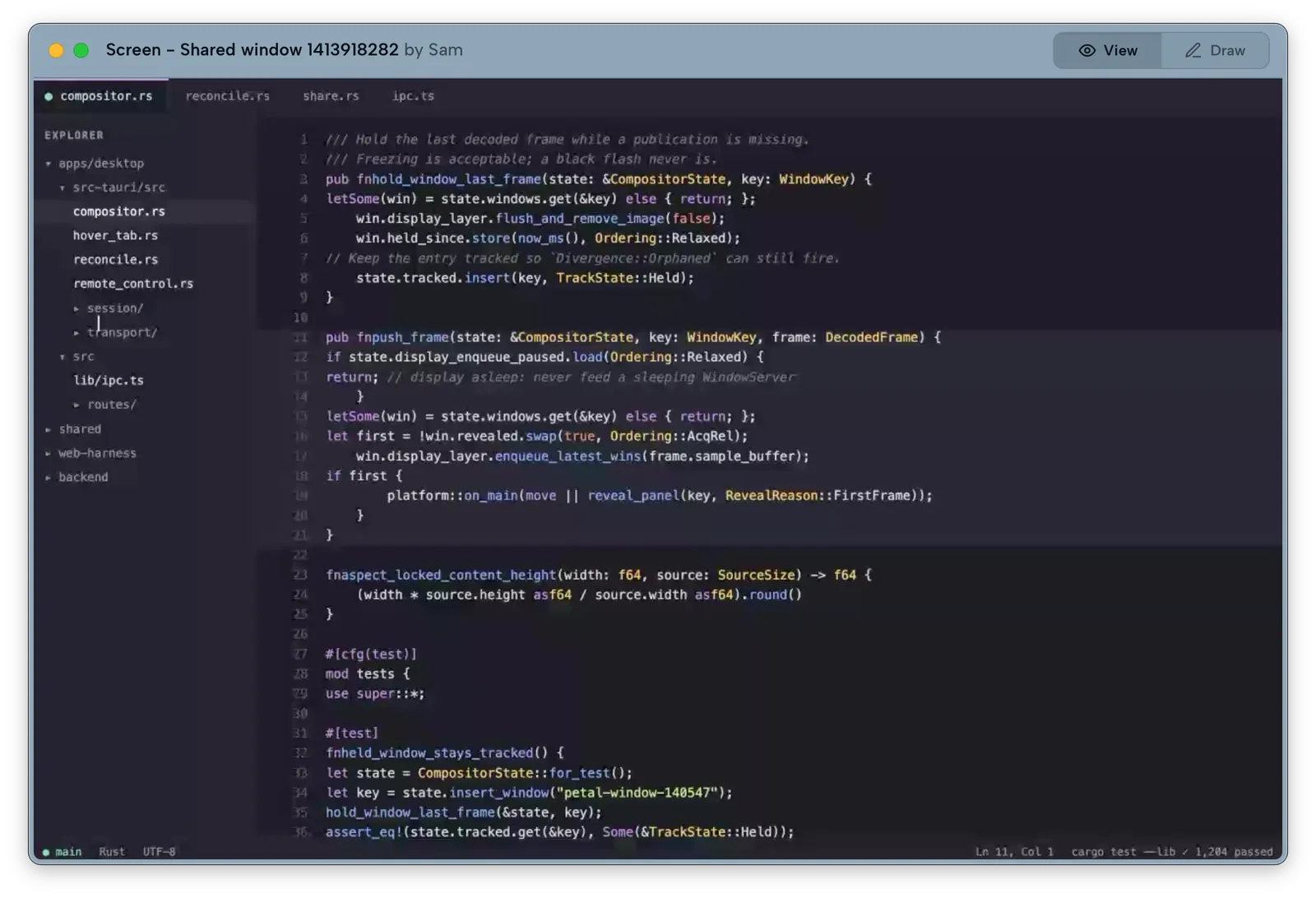
A window shared by Sam, on the viewer’s Mac. Everything below the header is the live share.
Where it appears
Section titled “Where it appears”The first shared window you receive opens near the top-left of your primary display. Each further share (from the same person or others) is offset 32 points down and to the right so they don’t stack exactly on top of each other; after ten windows the cascade starts again from the origin. Petal doesn’t remember window positions between meetings — every new share starts from this default placement.
The header bar
Section titled “The header bar”Every shared window has a header bar docked to its top edge. It shows, from left to right:
- Window controls — on macOS, two dots: the yellow dot hides the window and the green dot fits to source size (resizes the window to match the sharer’s actual window dimensions). On Windows the same cluster is Minimize and Maximize. There is no close button: a share ends when the sharer stops it.
- The window’s title and who is sharing it, as “source by owner”.
- A status chip, when relevant — for example “Video paused” or a remote-control status.
- AI chat — only when AI chat is turned on in Settings. While a session is live on this window, a persistent AI chat live badge reminds everyone that the window and the room’s voice are being sent to Google, next to a push-to-talk button.
- Open URL — only when the shared window has a page address to open (a shared browser window).
- Debug — only when Debug mode is on in Settings → Privacy & Sharing. Toggles a per-window panel with frame counters, glass-to-glass latency, and packet loss.
- View / Control / Draw on the right — switch between just watching, requesting keyboard/mouse control, and drawing on the window. Control is hidden entirely for shares that can never be controlled (a browser participant’s share, or a sharer whose policy is Off). See Remote control and Telepointers and drawing.
When the window is too narrow for every control, the header collapses the less important ones into a ⋯ overflow menu rather than clipping them.
The header is always visible — it never auto-hides — and it doubles as the window’s drag handle: drag anywhere on it to move the window.
Hiding a window only closes it on your machine; the share keeps running for everyone else. A hidden window doesn’t come back on its own — it reopens if the sharer stops and re-shares that window, or when you leave and rejoin the meeting. The menubar popover lists your open remote windows, so you can find one you’ve moved off-screen.
Resizing
Section titled “Resizing”Shared windows always keep the source window’s aspect ratio. To resize one, drag the grips on the header strip: the thin zone along the top edge, the header’s left or right edge, or a top corner. (There are no grips along the bottom — everything below the header belongs to the video.) Any size works; if you release the drag within 5% of exactly 1× or 2× the sharer’s real window size, Petal snaps to that exact multiple so text stays pixel-sharp. To get back to the sharer’s real size, click the green fit-to-source dot.
When a share ends
Section titled “When a share ends”If the person sharing stops sharing that window, or leaves the meeting, the window closes on your machine automatically.
Never a black frame
Section titled “Never a black frame”If the network hiccups, the sharer’s app pauses, or a stream is switching quality, Petal holds the last good frame rather than showing black. A frozen frame means “waiting for the next update”; the window catches up on its own. If the sharer’s connection drops for a while, the header shows a status chip until it recovers.