Joining from a browser
If someone in your meeting doesn’t have the Petal desktop app installed — or is on Linux, or simply prefers not to install it — they can join from a browser at meet.petal.live instead. It’s a real participant in the same meeting, not a limited guest mode: real screen sharing (from a desktop browser), a real camera, and a real microphone, over the same underlying connection the desktop app uses.
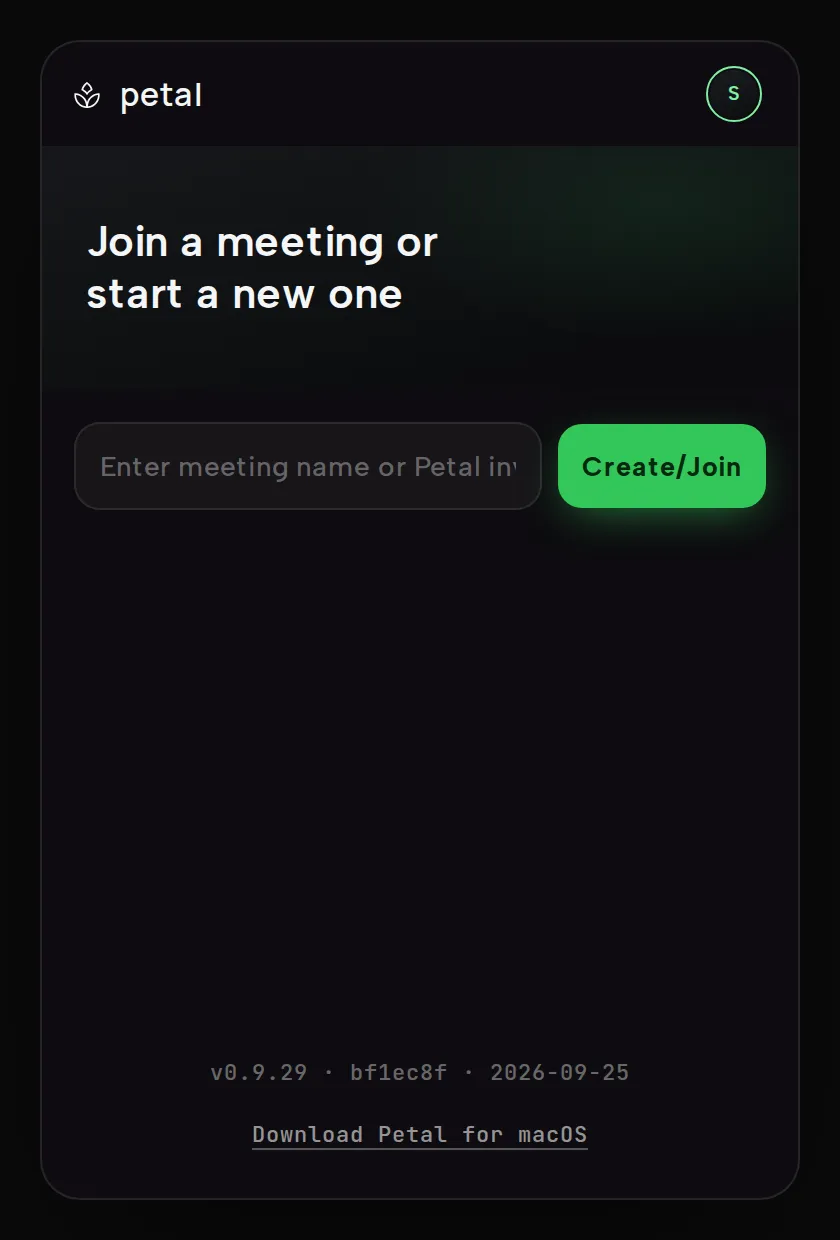
Opening an invite link
Section titled “Opening an invite link”Petal invite links look like
https://meet.petal.live/design-review/abc-defg-hjk — a readable label
plus the meeting’s access code. Opening one on a computer shows a small
Petal page with platform-aware desktop choices:
- Open Petal — hands off to the desktop app if it’s installed.
- Download Petal for macOS — the universal signed and notarized DMG.
- Download Petal for Windows — the x86-64 NSIS installer. The current build is unsigned for Authenticode and may trigger SmartScreen.
- Join in browser — continues to the browser client and connects you to the meeting. If you’ve never set a display name here before, it asks for your name first, then joins.
Both download buttons are always shown on a computer; the one matching your operating system comes first.
On a phone or tablet the page skips the desktop choices: Join in browser is the only button, the page doesn’t try to open the desktop app, and one line under the meeting code, “On a computer? Download Petal for Windows or macOS”, links to the install page for later.
Joining or creating a meeting by hand
Section titled “Joining or creating a meeting by hand”At meet.petal.live there’s a single field (“Enter meeting name or Petal invite”) and one button, which reads Create/Join until you type:
- Paste a full invite link, a
petal://join/...link from the desktop app, or type an access code likeabc-defg-hjk— the button reads Join. - Type a plain meeting name instead — the button reads Create and starts a fresh meeting with that name as its label; the access code is generated for you.
Your display name and profile color are set separately: an Enter your name card with a color picker and Save appears on your first visit, and you can reopen it any time from the avatar button (“Edit your profile”). Meetings you’ve joined before show up in a recent list below the field, with favorites and one-click rejoin.
What you can do from the browser
Section titled “What you can do from the browser”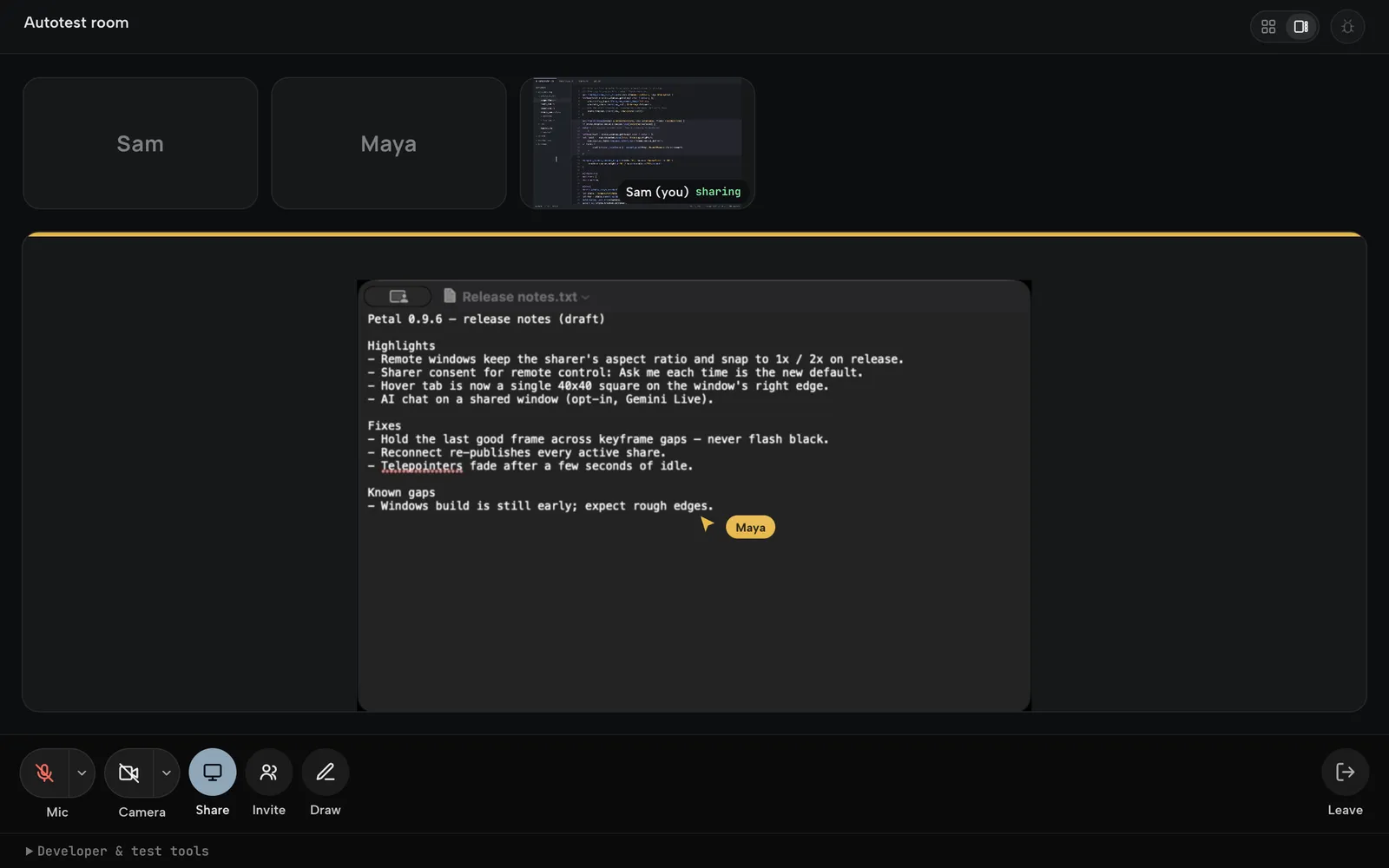
The meeting screen shows a tile grid — one tile per participant, plus a separate tile for each active screen share — with a control bar along the bottom:
- Mic — publishes your real microphone. The first click asks for microphone permission and starts publishing; later clicks mute or unmute.
- Camera — publishes your real webcam as a normal camera tile, same as the desktop app.
- Share — uses your browser’s own screen/window/tab picker to share a real screen, window, or tab.
- Invite — copies an invite link for the current meeting to your clipboard.
- Draw — toggles drawing mode, so you can sketch on a shared tile; everyone in the meeting sees your strokes in your profile color.
- Leave — disconnects and returns to the join screen.
When the controls don’t all fit — on a phone, or in a narrow browser window — the ones that don’t fit move into a ⋯ More menu, least-used first. Mic, Camera and Leave always stay in the bar. A dot on ⋯ means something in the menu needs a look, like unread chat messages or your screen share while it’s live.
Staying in the meeting
Section titled “Staying in the meeting”A meeting in the browser doesn’t end by accident:
- Back (the button, or the back gesture on a phone) asks Leave meeting? first. Stay keeps you in; Leave is the same as the Leave button.
- Reloading the page, including pulling down on a phone, rejoins the meeting instead of showing the invite page, and so does coming back to a tab the browser unloaded in the background. Pull-to-refresh is switched off while you’re in a meeting. This only applies to the tab that was in the meeting: the same link opened in another tab still shows the invite page, and so does a reload after you’ve left, or backed out to the invite page.
- If the connection drops while the page is in the background, it rejoins on its own once, when you come back to it.
- Any other disconnect you didn’t ask for shows what happened when Petal knows (for example Removed from the meeting or Connection lost) with a Rejoin button, instead of dropping you on the join screen.
A few browser rules shape this. In desktop Chrome, the toolbar’s Back button doesn’t stop at the Leave meeting? box: pressing Back a second time while it’s open leaves. On Android, the back gesture closes the box instead, the same as Stay, but the next Back then leaves without asking until you tap something in the meeting. And after joining straight from an invite link, Back only asks once you’ve tapped or clicked something in the meeting; until then it leaves like any other page.
The top bar shows the room name (click the pencil to rename it for everyone), an elapsed timer, a layout switch between the grid and a spotlight view that enlarges one share, and a bug-report button.
A shared window’s tile has the same header as the desktop app’s windows: the source and sharer, an AI chat button, Open URL when the share is a browser window, and the View / Control / Draw modes. Pick Control on a desktop participant’s share to request remote control; the sharer’s consent policy decides what happens next.
What’s different from the desktop app
Section titled “What’s different from the desktop app”The desktop app’s signature feature — a shared window rendering as its own independently movable, borderless native window on everyone else’s screen — only works for participants who are also using the desktop app. If you’re viewing a meeting from a browser, every share (yours or anyone else’s) renders as a tile in the grid, not a floating window. This is a limitation of what a browser can render, not of what gets shared: a browser participant’s screen share is the same real capture as a desktop share, and desktop-app participants watching that same share still see it as a native movable window on their machines. Sharing does need a desktop browser, though: phone browsers can’t capture the screen, so Share isn’t shown there.
Two more things a browser can’t do: nobody can remote-control a window you share from a browser (browsers can’t inject input into your operating system, so the Control mode isn’t offered on your shares), and the desktop-to-desktop clipboard shortcuts don’t apply.
Access codes are the key, not the label
Section titled “Access codes are the key, not the label”A meeting’s access code is a short letter code like abc-defg-hjk (three
groups of letters; easily-confused letters such as i and l never
appear). The code is what actually identifies and authorizes joining the
meeting:
- The readable label in an invite link
(
meet.petal.live/design-review/abc-defg-hjk) is cosmetic — it’s there for humans. Only the access code part selects the room, so a label alone won’t get you in. - Typing or pasting the same access code into the desktop app and into meet.petal.live puts you in the same meeting either way.
- When you create a meeting, the access code is generated automatically — you only ever need to share the invite link (or the code itself, which is short enough to read out loud).