Telepointers and drawing
Seeing where someone is pointing is half of what makes screen sharing collaborative, so Petal treats it as a core feature rather than polish.
Telepointers
Section titled “Telepointers”Whenever your cursor is over a window you’re sharing — or over a window someone else is sharing that’s open on your desktop — Petal broadcasts its position to the room, and everyone who has that window open sees a small cursor in your identity color with your name on it, in the right place on the shared content.
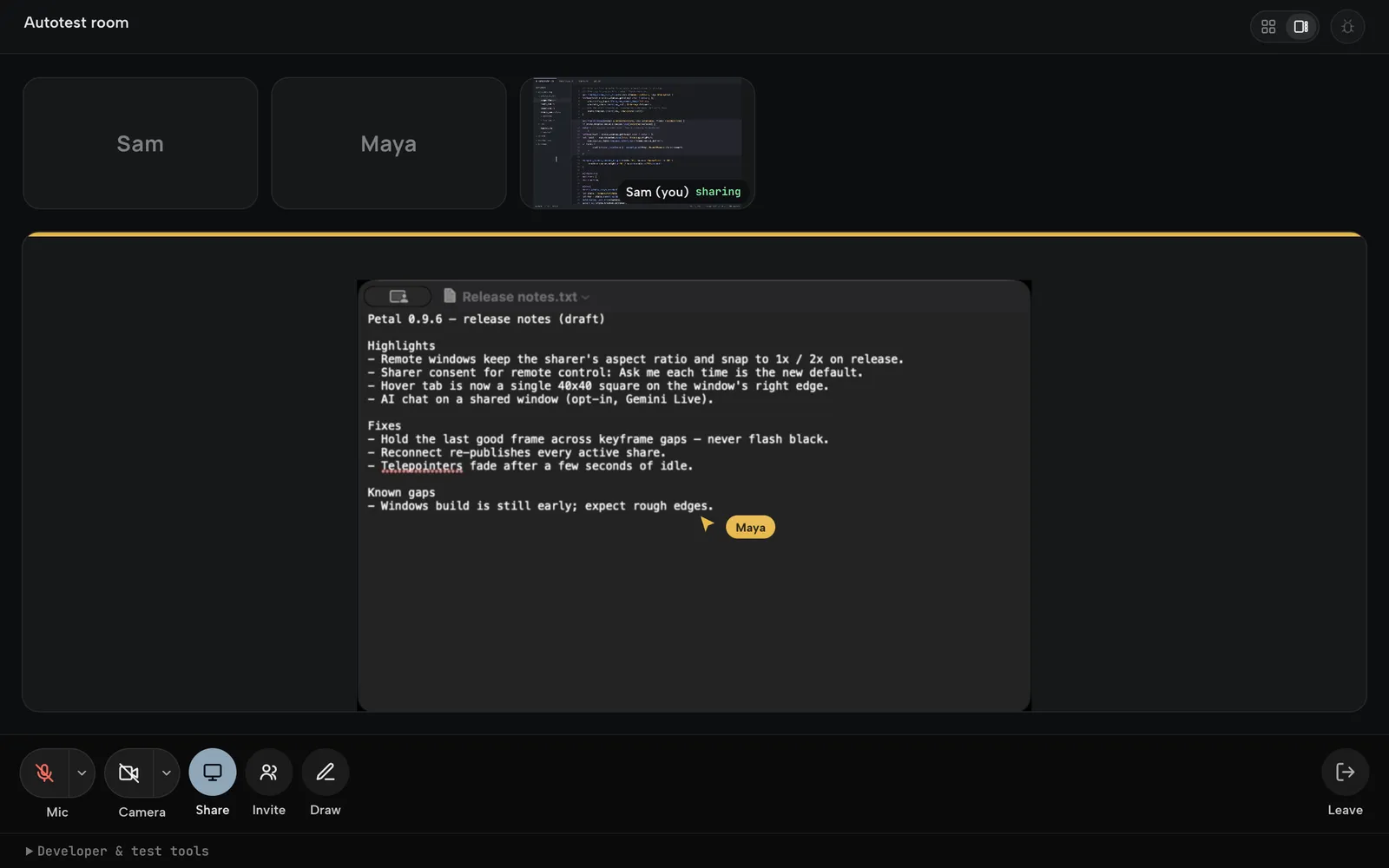
Maya’s pointer over her shared window, as a browser participant sees it.
- Positions are normalized to the shared window, so they land in the right spot regardless of how big each viewer has made their copy.
- A pointer that stops moving fades after a few seconds and disappears when the cursor leaves the window, so idle cursors don’t clutter the view.
- On macOS, Petal only sends your pointer when the shared window is actually the topmost thing under your cursor. If another window covers it, nothing is broadcast — your teammates never see you “pointing” at something you can’t see.
- Pointer positions are data, never baked into the video, so they cost no bandwidth to speak of and stay crisp at any size.
There is nothing to turn on. Telepointers are on whenever you’re in a meeting.
Drawing on a shared window
Section titled “Drawing on a shared window”To point something out more emphatically, switch a shared window to Draw using the mode segment on its header (viewers), or choose Draw on this shared window from the hover-tab or Petal View options menu (the sharer). Then drag on the window to sketch. Everyone viewing that window sees your strokes live, in your identity color.
- Strokes are ephemeral: each one stays fully visible for 10 seconds after its last point, then fades out over about a second. Nothing is stored.
- You can also type on a shared window. With Draw mode on, hold the pointer where you want the label and start typing: the text appears at that spot in your identity color and is placed for everyone when you move the pointer or start a stroke (Esc discards it). Text is limited to 256 characters per annotation and fades on the same schedule as a stroke. Every client — desktop and browser — can both write and show text annotations.
- While the sharer’s own Draw mode is active, the sharer’s overlay captures the cursor so the strokes land on the shared window instead of clicking through into the app underneath. That is the one moment Petal changes how clicks on your own windows behave — the hover tab’s primary click still means Stop sharing, and choosing Stop drawing on this window ends Draw without stopping the share.
- Switch back to View (or Control) to stop drawing.
Drawing also works on camera tiles in the meeting gallery and in the browser client’s tile grid.